Most professionals use AI the same way they use a search engine.
Type something in, see what comes out, move on.
And like search, they start from scratch every single time.
That works fine for one-off questions. But most of the work you do with AI is not one-off. You write the same types of emails. You summarize similar kinds of meetings. You draft status updates, review documents, and handle recurring communication in patterns that repeat week after week.
If you are rebuilding your prompt from scratch every time, you are leaving a lot of time on the table.
A personal prompt library fixes that.
What a Prompt Library Actually Is
A prompt library is a personal collection of your best, most useful AI prompts — saved, organized, and ready to reuse.
It is not a list of generic templates from the internet. It is the prompts you have actually tested in your own work, refined until they produce consistently good results, and saved so you do not have to reconstruct them from memory next time.
Think of it like a set of professional tools you have sharpened over time. A good prompt library means you are never starting from zero on recurring work.
Why Most People Do Not Build One (And Why That Is a Mistake)
There are usually two reasons.
The first is that starting fresh does not feel slow in the moment. You spend two minutes writing a prompt, get an okay result, and move on. The cost is invisible because you never see the alternative.
The second is that people assume their best prompts just need to be remembered. They do not. Prompt quality depends on specifics — role, tone, structure, constraints — and those specifics are hard to reconstruct without the original text in front of you.
The professionals who get the most consistent output from AI tend to save their best work. Over time, that becomes a real advantage.
How to Build a Prompt Library That Works
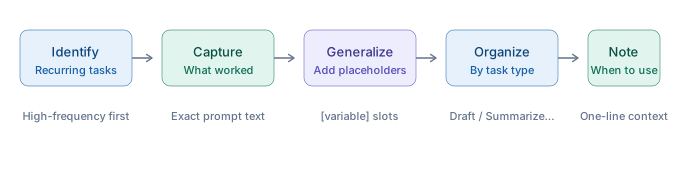
You do not need a special tool. A simple document or note works fine. What matters is the structure.
Step 1: Start With the Work You Do on Repeat
The first prompts to capture are for tasks you do at least once a week.
Think through your typical work week. What types of writing do you produce? What kinds of documents do you summarize or review? What requests or updates do you draft regularly?
Common high-frequency tasks for working professionals include:
- Meeting recaps and action items
- Status updates for leadership or teams
- Emails declining requests, following up, or confirming next steps
- Summarizing reports or research for non-expert audiences
- Drafting talking points or slide bullets
- Reviewing drafts for tone, clarity, or length
Start there. These are the prompts that will pay off fastest.
Step 2: Capture the Prompt That Actually Worked
This is the part most people skip.
When AI gives you a genuinely good result — something you used almost as-is, or that only needed minor edits — stop and save the prompt that produced it.
Do not paraphrase it. Copy the exact text. Include any context you gave, the role you assigned, the format you requested, and any constraints that shaped the output.
The goal is to be able to paste that prompt tomorrow and get a result that is at least as good.
Step 3: Generalize It Without Losing the Specificity
A saved prompt that only works for one specific situation is not very useful.
Once you have captured the original, lightly edit it so the variable parts are easy to swap out. Use clear placeholders like [meeting notes], [project name], [recipient], or [key point].
Keep everything else — the role, the tone instruction, the structural guidance, the constraints — exactly as it was. That is what makes the prompt work.
Example:
Original prompt that worked:
You are a senior project manager. Summarize this meeting into three sections: decisions made, key discussion points, and action items with owners. Use bullet points under each section. Keep it scannable and under 200 words.
Generalized version:
You are a senior [role]. Summarize this [meeting/document/call] into three sections: [section 1], [section 2], and [section 3]. Use bullet points under each section. Keep it scannable and under [length target].
The structure and the instruction quality stay intact. Only the specifics become flexible.
Step 4: Organize by Task, Not by Topic
A common mistake is organizing a prompt library by subject area — "writing," "research," "communication."
That feels logical but slows you down in practice. When you are about to start a task, you are thinking about what you need to do, not what category it belongs to.
Organize by task type instead:
- Summarize / Condense
- Draft / Write
- Review / Edit
- Analyze / Extract
- Prepare / Plan
- Communicate / Respond
You will find your prompts faster, and you will actually use the library.
Step 5: Add a Short Note About When to Use It
For every saved prompt, add one line describing when it works best. Not a full explanation — just enough to pick the right one quickly.
For example:
Use when you need a meeting recap that leadership can read in under a minute. Works best when paste-in notes are at least one paragraph.
That note takes thirty seconds to write and will save you from pulling the wrong prompt on a high-stakes task.
What a Basic Prompt Library Looks Like
Here is a simple structure that works well for most professionals:
Summarize / Condense
- Meeting recap → 3-section format with bullets
- Long report → executive summary in 150 words
- Email thread → 3-sentence catch-up for someone looping in late
Draft / Write
- Weekly status update → leadership-facing, under 200 words
- Declination email → professional, brief, door-open close
- Follow-up after no response → warm but direct, one ask only
Review / Edit
- Tone check → does this read as confident without being aggressive?
- Length trim → cut 30% without losing the core message
- Plain language pass → remove jargon for a general audience
Analyze / Extract
- Identify action items from unstructured notes
- Extract key risks from a long document
- Find the strongest three supporting points in a report
That is twelve prompts covering work that shows up every week for most office professionals. A library that size takes about thirty minutes to build. It compounds value from the first day.
The Habit That Makes It Stick
A prompt library only works if you actually add to it.
The easiest way to build the habit is to create a rule for yourself: when AI gives you something genuinely useful, save the prompt before you close the tab.
That is the whole system. One rule, applied consistently.
Over a few weeks, your library will cover most of your recurring AI work. Over a few months, it will represent a meaningful productivity asset that is completely specific to how you work and what you do.
One More Thing: Start With What Already Exists
Building a prompt library does not mean starting from scratch.
A good starting point is reviewing prompts that have already been tested and structured for common professional tasks. OpPro AI's free AI prompt library includes 22 templates across seven categories — writing, summarizing, research, communication, planning, analysis, and review — that you can use as-is or adapt as your foundation.
From there, the goal is to add what is specific to your role, your team, and your recurring work.
The professionals who get the most out of AI are not the ones who know the most prompts. They are the ones who have saved the right prompts for their work and actually use them consistently.
If you want to build that kind of structured, repeatable approach across your entire AI workflow, OpPro AI's AI Productivity & Workflow Certification walks through prompting, workflow systems, and judgment as a complete skill set for working professionals.